Video
How to make a video louder on iPhone
Quick answer
To make a video louder on iPhone, open it in Increase Volume (free on the App Store), drag the Volume multiplication slider up to ×10, tap Boost Volume, compare Original and Processed, then tap Download Processed. The louder copy is saved to Photos or Files and plays loud on every device and app. The Photos app has no volume boost, and iMovie caps at roughly 500%.
You recorded a moment, sent it to a friend, and the reply was “I can't hear anything.” Quiet video is one of the most common iPhone frustrations, because the fix is not where people look for it: turning the volume buttons up only changes playback on your phone, and the Photos editor has no volume slider at all.
This guide covers the three realistic options on iPhone, what each one can and cannot do, and then walks through the fastest method: multiplying the video's audio up to 10× with Increase Volume and saving a permanently louder file.
Why turning up the volume doesn't fix a quiet video
The iPhone volume buttons change how loud *your* speaker plays. They do not change the audio data inside the video file. When you share that file, the recipient's phone plays it at the original, quiet level. To fix it for good you have to raise the level of the audio track itself and save a new file. That is what a video volume booster does.
Option 1: the Photos app (no boost available)
Open the video in Photos, tap Edit, and you will find a speaker icon that mutes the clip and, on iPhone 16 or later with videos recorded in Spatial Audio, an Audio Mix control that rebalances voices against background noise. Neither one increases overall loudness. If the whole recording is quiet, Photos cannot help.
Option 2: iMovie (free, capped at about 500%)
iMovie can raise clip volume: create a Movie project, add the video, tap the clip, tap the speaker icon and drag the slider right. Two limits matter. The slider stops at roughly 500% (5×), which is often not enough for a phone recording made from across a room. And you have to build a project, then export and re-encode the whole video, which takes a few minutes for a long clip.
- Open iMovie → Start New Project → Movie, and pick the video.
- Tap the clip in the timeline, tap the speaker icon, drag the volume slider to the right (max about 500%).
- Tap Done → Share → Save Video and wait for the export.
Option 3: Increase Volume (up to 10×, one slider, under a minute)
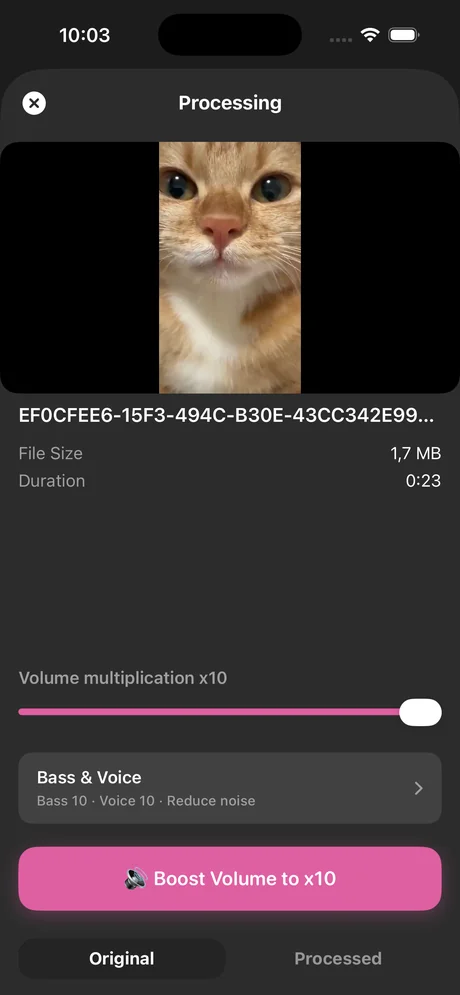
Increase Volume is built for exactly this job. It accepts any video from Photos or Files, shows one Volume multiplication slider that goes to ×10 (1000%), lets you A/B the Original and Processed versions before you commit, and saves the result through the normal iOS share sheet. It also handles audio-only files such as MP3s and voice memos, which iMovie cannot open.
Processing happens on the iPhone. There is no upload, no account and no watermark on the exported video.
Step by step: make a video louder with Increase Volume
Takes about a minute for a typical clip. You need the free app from the App Store and the video in Photos or Files.
-
1
Open the video in Increase Volume
Launch Increase Volume and add the video from Photos or Files. Faster: open the video in Photos, tap Share, and choose Increase Volume; a project is created instantly.
-
2
Check the details
The app shows the file name, size and duration so you can confirm you picked the right clip. If the video is mostly speech, switch on Improve Audio Quality.
-
3
Set the boost
Drag the Volume multiplication slider. Start around ×3 to ×5 for a video that is merely quiet; go to ×10 for a recording you can barely hear. Tap Boost Volume to ×N.
-
4
Compare Original and Processed
Use the toggle under the button to switch between the original and the boosted version. If the loud parts sound harsh, go back and lower the multiplier one notch.
-
5
Download and share
Tap Download Processed. In the share sheet choose Save Video to put the louder copy in Photos, Save to Files, or send it directly to Messages, WhatsApp, AirDrop or TikTok.

Boost your quiet video now
Increase Volume is free on the App Store. Share the video to the app, slide to ×10, tap Download Processed.
Tips for the best result
- Boost the video *before* uploading to TikTok, Instagram or YouTube. Those platforms normalise loudness on upload, but they cannot recover a track that arrived too quiet.
- If the clip has one loud moment (a laugh, a door slam) and quiet speech around it, use a moderate multiplier (×3–×5) and turn on Improve Audio Quality rather than pushing ×10.
- Your original stays untouched. Increase Volume always writes a new file, so you can try several levels.
- Videos recorded with the microphone covered by a case or a finger are quiet *and* muffled; boosting fixes the level but not the muffling.
Questions people also ask
Can I make a video louder on iPhone without an app?
Only with iMovie, which Apple provides for free and which raises clip volume to about 500%. The Photos app itself cannot increase volume. For more than 5× or for a faster workflow, use Increase Volume.
Does making a video louder reduce its quality?
The video picture is not affected. The audio is multiplied; if you push a recording that already has loud peaks too far it can clip and sound harsh, which is why Increase Volume includes an Original/Processed toggle so you can listen before saving.
Will the louder video stay loud when I send it?
Yes. The boost is written into the file's audio track, so it plays at the new level on any phone, computer or social app.
Does this also work for videos I downloaded, not recorded?
Yes, as long as the file is in Photos or Files and is not copy-protected. Increase Volume accepts MP4 and MOV files from any source.
Increase Volume makes the audio inside a file louder and saves a new copy. It cannot raise the hardware volume limit of the iPhone speaker or change system-wide playback volume.