Screen recording
How to make a screen recording louder on iPhone
Quick answer
A finished iPhone screen recording cannot be made louder with system settings, but you can boost the file: open it in Increase Volume, drag the Volume multiplication slider to ×5–×10, tap Boost Volume, check the Processed version and tap Download Processed. To record louder next time, raise the in-app media volume before you start, disconnect Bluetooth headphones, and long-press the record button to enable the microphone for narration.
Screen recordings are the quietest videos most iPhones ever produce. iOS captures app audio at a conservative level to avoid distortion, and if your headphones were connected or the app's own volume was low, the captured track can be almost silent. Add a voice-over through the microphone and the mix gets even more uneven.
Below: the reasons your recording is quiet, what to change before the next one, and how to rescue the recording you already have.
Why iPhone screen recordings are so quiet
Four causes account for almost every case:
- Capture level: iOS records internal app audio at a reduced level so loud games and videos do not clip.
- Bluetooth: when AirPods or a Bluetooth speaker are connected, captured audio is often much quieter or missing entirely.
- In-app volume: the recording captures the app's audio at the volume you had set. If the phone was at 30%, the recording is at 30%.
- Microphone mix: if you enabled the microphone, your voice and the app audio are mixed, and iOS lowers the app audio to make room.
Record louder next time
Before you tap record: disconnect Bluetooth audio, turn the media volume up to maximum, and mute notifications with a Focus mode. If you want narration, long-press the Screen Recording button in Control Center and tap Microphone so it turns red; a plain tap records app audio only. A five-second test recording tells you within seconds whether the level is right.
Fix the recording you already have
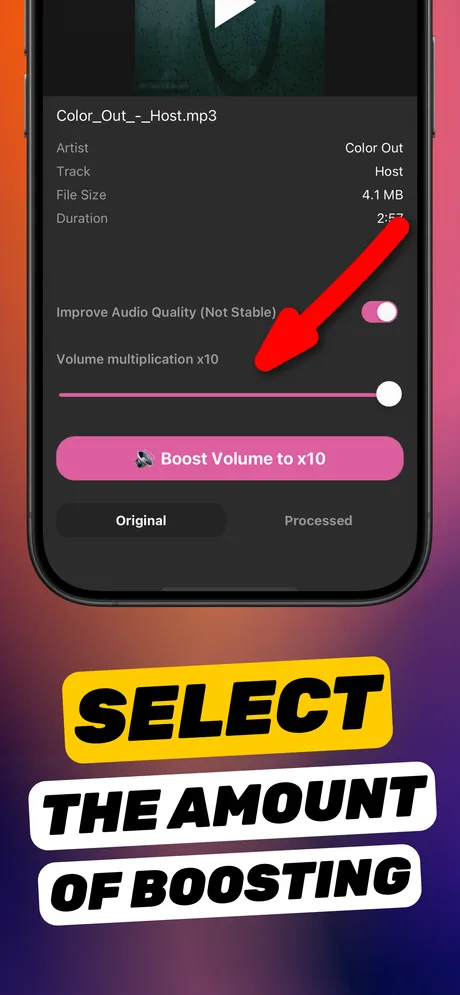
System settings cannot change a file that is already saved. iMovie can raise it to about 500%, which is sometimes enough but requires building a project and re-exporting. Increase Volume goes to ×10, works directly on the file from Photos, and shows an Original/Processed toggle so you can hear the boosted level before saving. For tutorials with speech, switch on Improve Audio Quality to make the voice easier to understand.
Step by step: boost a screen recording
You need the free Increase Volume app and the screen recording in Photos.
-
1
Share the recording to the app
Open the screen recording in Photos, tap Share and choose Increase Volume. Or open the app and add the file from Photos.
-
2
Turn on Improve Audio Quality for narration
If you talked over the recording, enable the Improve Audio Quality toggle so speech stays clear when boosted.
-
3
Set the multiplier
Drag Volume multiplication to ×5 as a starting point. Screen recordings are usually far below normal level, so ×8–×10 is common. Tap Boost Volume.
-
4
Listen to Processed
Flip to Processed and play the loudest part of the recording. If it sounds harsh, step the multiplier down.
-
5
Download Processed
Tap Download Processed and choose Save Video to add the louder recording to Photos, or send it straight to YouTube, Slack, Messages or your editor.
Do it in Increase Volume
Free on the App Store. Import, drag the slider to ×10, tap Download Processed.
Tips
- Boost before you trim or add captions in another editor; a louder source gives every downstream tool more to work with.
- For gameplay recordings with music, a moderate boost (×3–×4) keeps the music from clipping while lifting the overall level.
- If the recording is silent rather than quiet, the audio was never captured (usually a muted app or a DRM-protected video). No booster can add sound that was not recorded.
Questions people also ask
Why does my iPhone screen recording have no sound at all?
Either the app you recorded pauses its audio when it detects screen recording (streaming and video-call apps do this), or the video was DRM-protected, or the phone's media volume was at zero. A silent track cannot be boosted; re-record with the app's audio playing and volume up.
Can I make the microphone narration louder but not the game audio?
Increase Volume boosts the mixed track as a whole. Turning on Improve Audio Quality favours speech intelligibility, which usually makes narration stand out more after the boost.
Does boosting change the video resolution?
No. Only the audio track is processed; the picture is passed through.
Increase Volume makes the audio inside a file louder and saves a new copy. It cannot raise the hardware volume limit of the iPhone speaker or change system-wide playback volume.