
Quality
How to make a video louder without losing quality
Quick answer
Boosting volume does not touch the picture, and it does not degrade the audio as long as the loudest peaks stay below the digital ceiling. On iPhone, open the video in Increase Volume, start at ×3, tap Boost Volume, and use the Original/Processed toggle to listen to the loudest moment. Raise the multiplier until it is clearly loud but not harsh. Switch on Improve Audio Quality for speech, and save with Download Processed. Your original file is never modified.
“Won't it sound distorted?” is the first question people ask about a volume booster, and it is the right question. Amplifying audio is multiplication: every sample gets bigger. If the biggest ones hit the maximum value the format allows, they are chopped flat, and you hear a crackle or harshness on the loud parts. That is clipping, and it is the only real quality risk.
The good news: a *quiet* recording, by definition, has lots of room before that ceiling. This guide explains how to use that room and how to check your result before you save.
What actually changes when you boost
Only the audio track is processed. The video stream is passed through, so resolution, frame rate and colour are exactly the same. Inside the audio, a multiplier of ×2 doubles the amplitude (about +6 dB), ×4 is about +12 dB, and ×10 is +20 dB. Any noise in the recording (room hiss, wind) is multiplied by the same amount, which is why very high boosts on noisy recordings can sound hissy even when nothing clips.
How much boost is safe?
It depends on how far below the ceiling the loudest moment sits, not on how quiet the *average* is. A recording that sounds very quiet but contains one door slam at full level cannot be multiplied much before the slam clips. A uniformly quiet recording, such as a lecture captured from the back row, can often take ×8–×10 cleanly.
| Recording | Typical safe range | Notes |
|---|---|---|
| Voice memo or lecture recorded at a distance | ×5 – ×10 | Turn on Improve Audio Quality for speech. |
| Phone video that is merely soft | ×2 – ×4 | Check the loudest laugh or clap. |
| Screen recording | ×5 – ×10 | Usually far below normal level. |
| Music with quiet verses and loud chorus | ×1.5 – ×3 | The chorus sets the limit. |
Use the Original/Processed check
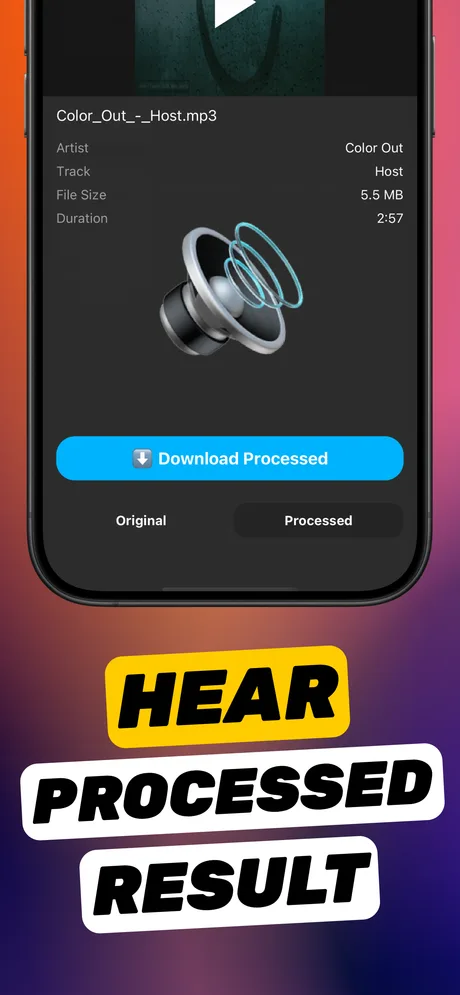
Increase Volume processes the file and then shows an Original/Processed toggle before anything is saved. Scrub to the loudest moment you can find and flip between the two. If Processed sounds harsh or crackly there, lower the multiplier one step and boost again. Because the app writes a new file, you can iterate freely; the original is never touched.
Improve Audio Quality: when to turn it on
The Improve Audio Quality toggle applies additional processing aimed at intelligibility, which helps most on speech: interviews, lectures, voice notes, screen-recorded tutorials. For music, try both settings and keep whichever sounds more natural. The option is labelled as experimental in the current build, so always listen to the result.
Privacy: everything stays on your phone
Increase Volume processes files on the iPhone. There is no upload, no account, and the result is saved through the standard iOS share sheet to Photos, Files or any app you choose. Online boosters require sending the file to a server and usually re-encode it at lower quality; a local app avoids both.
Step by step: a clean boost
Same workflow for video and audio files.
-
1
Open the file in Increase Volume
Add it from Photos or Files, or share it to the app from anywhere.
-
2
Decide on Improve Audio Quality
On for speech; try both for music.
-
3
Start moderate
Set Volume multiplication to ×3 and tap Boost Volume.
-
4
Check the loudest moment
Toggle Original/Processed on the loudest part. Clean? Raise the multiplier and repeat. Harsh? Lower it.
-
5
Save
Tap Download Processed and save to Photos or Files. The original is untouched.

Do it in Increase Volume
Free on the App Store. Import, drag the slider to ×10, tap Download Processed.
Tips
- Listen on headphones for the check; phone speakers hide subtle clipping.
- If a file is noisy, a slightly lower multiplier with Improve Audio Quality on often sounds better than the maximum boost.
- Boost once, at the source. Re-boosting an already boosted export stacks any artefacts.
Questions people also ask
Does increasing volume reduce video resolution?
No. Only the audio is processed. The video stream keeps its resolution, frame rate and bitrate.
What does distortion from over-boosting sound like?
A crackle, buzz or harshness on the loudest moments only, while quiet parts sound fine. If you hear it, reduce the multiplier.
Is ×10 too much?
Not for genuinely quiet recordings such as distant voice memos or screen recordings. For a normal phone video, ×2–×4 is usually plenty. Let the Original/Processed check decide.
Increase Volume makes the audio inside a file louder and saves a new copy. It cannot raise the hardware volume limit of the iPhone speaker or change system-wide playback volume.