
Bass boost
How to bass boost a video on iPhone
Quick answer
To bass boost a video on iPhone, share it from Photos to Increase Volume, tap Bass & Voice, drag the Bass slider up (and Voice if speech should stay clear), turn on Reduce noise if needed and tap Done. Set Volume multiplication, tap Boost Volume, compare Original and Processed with headphones, then tap Download Processed to save the bass-boosted copy. The Photos app and iMovie for iPhone have no bass or EQ control, and the Bass Booster EQ in Settings › Music only affects Apple Music playback.
You filmed a concert, a car meet or a clip for a music edit, and the playback sounds thin: the kick drum is gone and the low end is just a dull thump. On iPhone that is a common complaint, and none of the built-in apps let you fix it inside the video file itself.
This guide covers what the iPhone can and cannot do with bass, how to add bass to the video so it stays there when you share it, and how far to push it before it starts to distort.
Can iPhone bass boost a video on its own?
Not inside the video. The Photos app can trim, crop and mute a clip, but it has no audio controls beyond that. iMovie for iPhone lets you raise a clip's volume to about 500%, yet it has no equalizer, so there is no way to lift only the low frequencies.
The Bass Booster preset under Settings › Music › EQ is a playback setting for the Music app. It does not change videos in Photos, and it never travels with a file you send, so whoever receives your video hears the original, thin sound. To make the bass part of the video, the audio track itself has to be processed and saved as a new file.
Starting points for Bass, Voice and volume
Bass and volume both add energy to the signal, so it is easy to overdo them together. Start with the row that matches your clip, listen on headphones, then adjust one slider at a time.
| Your video | Bass | Voice | Volume multiplication |
|---|---|---|---|
| Concert or club clip | High | Low | ×2 – ×3 |
| Car audio or bass test video | High | Off or low | ×1 – ×2 |
| Music edit, dance or gym clip | Medium – high | Low | ×2 – ×4 |
| Vlog with background music | Low – medium | Medium – high | ×2 – ×5 |
| Speech recorded from a distance | Low | High, Reduce noise on | ×4 – ×10 |
Why you may not hear the bass on the iPhone speaker
Phone speakers are tiny and physically cannot reproduce deep bass, so a bass boost that sounds powerful on AirPods, headphones or a car stereo can seem barely different on the built-in speaker. Always judge the result with headphones or the speaker your audience will most likely use.
If the processed version crackles or the kick drum sounds smeared, the signal is clipping. Lower Volume multiplication by one step first; if it still distorts, bring the Bass slider down. A clean ×2 with solid bass usually sounds louder than a distorted ×6.
Step by step: bass boost a video on iPhone
It takes about a minute, and the original video is never changed.
-
1
Open the video in Increase Volume
In Photos, open the video, tap Share and choose Increase Volume. You can also add a video or audio file from Files inside the app.
-
2
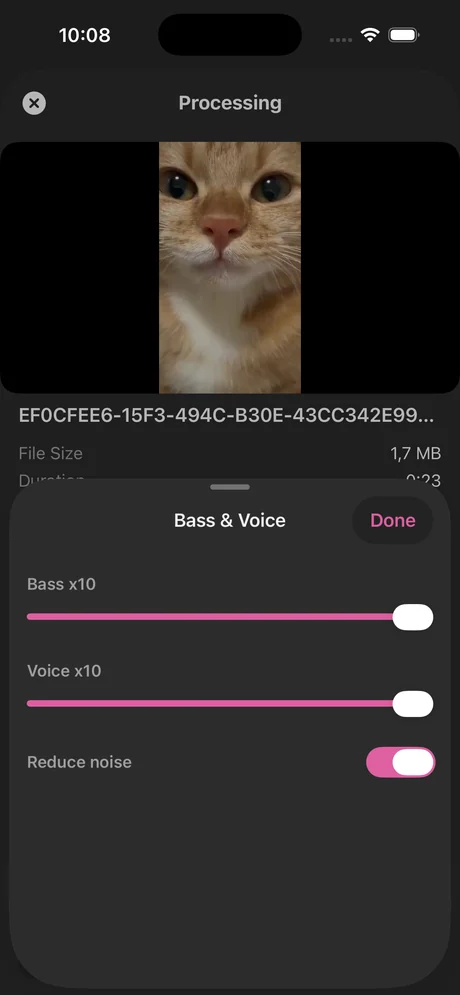
Open Bass & Voice
On the Processing screen, tap the Bass & Voice row under the Volume multiplication slider.
-
3
Set the Bass slider
Drag Bass up for a fuller low end. Raise Voice as well if people talk in the clip, so speech stays clear on top of the bass, and turn on Reduce noise for wind or room hiss. Tap Done.
-
4
Choose the volume and boost
Set Volume multiplication (×2–×4 is plenty for most music clips) and tap Boost Volume.
-
5
Compare and save
Switch between Original and Processed with headphones on. When it sounds right, tap Download Processed and save the bass-boosted video to Photos or Files, or share it straight to another app.

Do it in Increase Volume
Free on the App Store. Import, drag the slider to ×10, tap Download Processed.
Tips for a cleaner bass boost
- Bass boost works best on music, engines and drums. On a clip of people talking, raise Voice instead, or the result just sounds muffled.
- Before posting to TikTok, Instagram or YouTube, keep a little headroom: platforms apply their own loudness processing, which can make an over-boosted low end distort.
- Keep the original. Each boost is saved as a new file, so you can try a different Bass setting at any time.
Questions people also ask
Can I bass boost a video in iMovie on iPhone?
No. iMovie for iPhone can raise or lower a clip's overall volume (up to about 500%), but it has no equalizer or bass control. iMovie on Mac has an equalizer; on iPhone you need an app that processes the audio, such as Increase Volume.
Will the bass boost stay when I send the video?
Yes, when it is applied to the file. Increase Volume saves a new video with the boosted audio, so it sounds the same on any phone or platform. The EQ in Settings › Music only changes playback in the Music app on your own iPhone.
Does a bass boost also make the video louder?
It makes the low end louder, which can make the whole clip feel louder. For overall volume use the Volume multiplication slider; the two work together, so lower one if the result starts to distort.
Is Increase Volume free?
Increase Volume is a free download with a free trial; unlimited boosting is unlocked with a subscription or a one-time lifetime plan. Current prices are on the App Store listing.
Increase Volume makes the audio inside a file louder and saves a new copy. It cannot raise the hardware volume limit of the iPhone speaker or change system-wide playback volume.