WhatsApp & Telegram
How to make a WhatsApp voice message louder on iPhone
Quick answer
If every WhatsApp voice message is quiet, your iPhone is probably playing through the earpiece because the proximity sensor was covered; hold the phone away from your face and press volume up while it plays. If one particular message is quiet, export it (long-press → Forward → Share → Save to Files or share to Increase Volume), boost it ×5–×10 in Increase Volume with Improve Audio Quality on, and save or forward the louder copy.
There are two unrelated reasons a WhatsApp voice note is hard to hear, and they need different fixes. The first is your iPhone quietly switching to the earpiece speaker. The second is that the sender recorded it far from the microphone, in a noisy place, and it really is quiet. Check the first in ten seconds, then fix the second in a minute.
The same steps apply to Telegram, Signal and iMessage audio messages.
Fix 1: it's playing through the earpiece
WhatsApp switches playback to the earpiece (the small speaker you use for calls) when the proximity sensor near the front camera is covered. A finger, a case edge or lifting the phone toward your face triggers it, and the message suddenly sounds like a whisper. Uncover the sensor, hold the phone away from you, and press the volume-up button *while the message is playing*; iOS keeps a separate volume level for the earpiece and it may have been turned right down.
Also check that Bluetooth is not routing audio to earbuds in your pocket, and that Settings → Sounds & Haptics → Headphone Safety → Reduce Loud Audio is not capping headphone volume.
Fix 2: the message itself is quiet
If other messages are fine and this one is not, the recording is quiet. WhatsApp has no volume control for received audio, and the volume buttons cannot go past 100%. You need to make the file itself louder. WhatsApp lets you export a voice note as an audio file, and Increase Volume can multiply it up to ×10 and give you a new copy to keep or forward.
Exporting a voice note from WhatsApp, Telegram or Messages
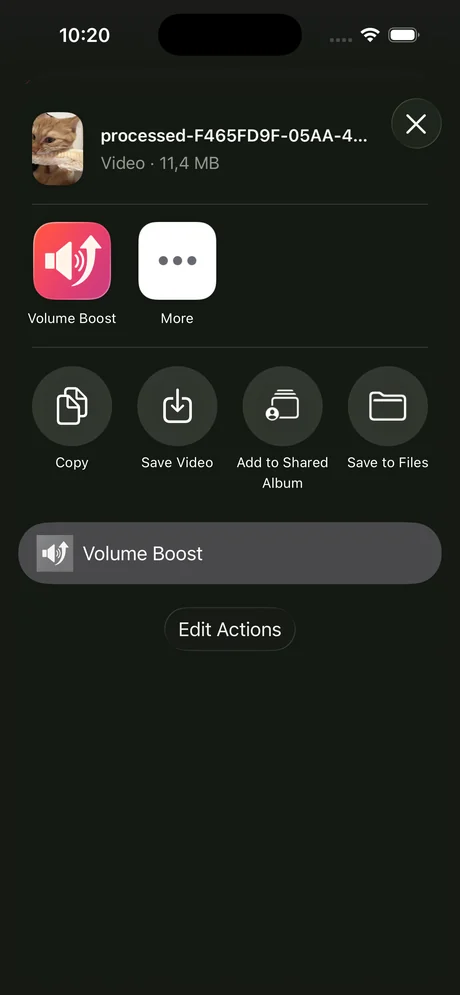
- WhatsApp: long-press the voice message → Forward → tap the Share icon (bottom-left) → choose Increase Volume, or Save to Files.
- Telegram: long-press the voice message → Forward or Share → Save to Files, or share to Increase Volume.
- iMessage audio messages: long-press → Save (adds to Voice Memos), then share from Voice Memos.
- Signal: long-press → Save → Save to Files.
Step by step: boost a WhatsApp voice message
About a minute with the free Increase Volume app.
-
1
Export the voice note
In WhatsApp, long-press the message → Forward → Share icon → Increase Volume. (Or Save to Files and add it from inside the app.)
-
2
Turn on Improve Audio Quality
Voice notes are speech; the toggle helps keep words clear when boosted.
-
3
Boost
Set Volume multiplication to ×5 to start, ×8–×10 for a very quiet note, and tap Boost Volume.
-
4
Compare
Flip Original/Processed. If the loudest word crackles, lower the multiplier.
-
5
Save or forward
Tap Download Processed. Save to Files, or share the louder copy straight back to WhatsApp so the group can hear it.
Do it in Increase Volume
Free on the App Store. Import, drag the slider to ×10, tap Download Processed.
Tips
- Ask frequent senders to hold the phone closer; nothing beats fixing it at the source.
- If you save many voice notes, keep the boosted copies in a Files folder; WhatsApp's own media folder is not browsable.
- For voice notes you record yourself, the same trick works: record, share to Increase Volume, boost, and send the boosted file as a document or audio.
Questions people also ask
Why are WhatsApp voice messages quiet when I hold the phone to my ear?
That is intended behaviour: WhatsApp routes to the earpiece for privacy when the proximity sensor is covered. Raise the earpiece volume with the buttons while the message plays, or hold the phone away to use the loudspeaker.
Can I make a voice note louder inside WhatsApp?
No. WhatsApp has playback speed (1×, 1.5×, 2×) but no volume boost. Export the message and boost it with Increase Volume.
Does this work for Telegram and Messenger too?
Yes. Any app that lets you share or save the audio file works. Boosted files can be sent back through the same app.
Increase Volume makes the audio inside a file louder and saves a new copy. It cannot raise the hardware volume limit of the iPhone speaker or change system-wide playback volume.