
MP3 & audio files
How to make an audio file louder on iPhone (MP3, M4A, WAV)
Quick answer
To make an audio file (MP3, M4A or WAV) louder on iPhone, open Increase Volume, add the file from Files (or share it to the app), drag Volume multiplication up to ×10, tap Boost Volume, compare Original and Processed, then tap Download Processed to save the louder file to Files or share it. Everything happens on the phone; no computer, upload or account is needed. Streaming tracks from Apple Music or Spotify cannot be imported because they are copy-protected.
You downloaded a lecture, an old demo, a podcast episode or a ringtone-in-waiting, and it plays noticeably quieter than everything else in your library. On a computer you would open Audacity or a normaliser; on an iPhone the usual advice is “use an online booster”, which means uploading the file and getting back a re-encoded version.
Increase Volume does the same job locally. It is listed on the App Store as an Audio & Music Booster because, unlike most video volume boosters, it opens plain audio files.
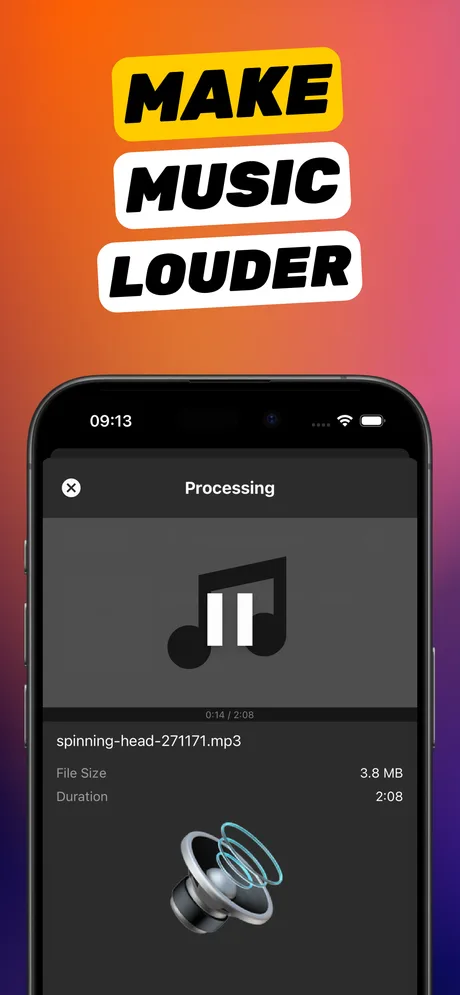
Which audio files you can boost
Anything that is a real file on your iPhone: MP3, M4A/AAC (including Voice Memos exports and WhatsApp voice notes), WAV and other common formats stored in Files, iCloud Drive, Dropbox or received via Messages and Mail. The app reads the file's metadata and shows the artist and track name where available.
Not possible: songs streamed or downloaded inside Apple Music, Spotify or YouTube Music. Those are encrypted and cannot be opened by any third-party app. For streaming, use the service's own EQ or Sound Check.
How much boost an MP3 can take
MP3s ripped from CDs or bought from stores are usually already close to full level and will clip if pushed hard; ×1.5–×2 is plenty. Podcasts, lectures, voice recordings and old demos often sit 10–20 dB below full scale and take ×4–×10 comfortably. The Original/Processed toggle lets you test the loudest passage before saving.
Increase Volume vs online MP3 boosters
| Online booster | Increase Volume | |
|---|---|---|
| Where the file goes | Uploaded to a server | Stays on your iPhone |
| Re-encoding | Usually to a fixed, lower bitrate | Processed locally |
| File size limits | Common (e.g. 50–500 MB) | Limited by phone storage |
| Preview before saving | Rarely | Original / Processed toggle |
| Speech enhancement | Sometimes | Improve Audio Quality toggle |
Step by step: boost an MP3
You need the MP3 saved in Files (or in an app that can share it) and the free Increase Volume app.
-
1
Add the MP3
Open Increase Volume and add the file from Files. Or open Files, long-press the MP3, tap Share and choose Increase Volume.
-
2
Check the details
Confirm the artist, track, size and duration. For spoken-word files, turn on Improve Audio Quality.
-
3
Set the multiplier
Drag Volume multiplication to ×2 for music, ×4–×10 for quiet speech recordings. Tap Boost Volume.
-
4
Compare
Toggle Original/Processed on the loudest part. Adjust if the boosted version sounds harsh.
-
5
Download Processed
Tap Download Processed, then Save to Files, or share to Mail, Messages or a cloud drive.

Do it in Increase Volume
Free on the App Store. Import, drag the slider to ×10, tap Download Processed.
Tips
- Boost a whole set of files (an audiobook's chapters, a lecture series) to the same multiplier so they play back at a consistent level.
- Keep the boosted copies in a dedicated Files folder; the app also keeps each project in its list for later.
- For ringtones, boost first, then trim to 30 seconds in your ringtone maker; a louder source gives a louder ringtone.
Questions people also ask
Can I make a song from Apple Music or Spotify louder?
No third-party app can open streaming downloads; they are encrypted. Increase Volume works on files you own in Files, iCloud Drive or other storage.
Will boosting an MP3 lower its quality?
The audio is processed once and saved as a new file. Quality only suffers if you boost so far that loud peaks clip; the Original/Processed toggle lets you hear that before saving.
Does it work with WAV and M4A too?
Yes. Common audio formats are supported alongside MP4 and MOV video.
Increase Volume makes the audio inside a file louder and saves a new copy. It cannot raise the hardware volume limit of the iPhone speaker or change system-wide playback volume.