
Voice & speech
How to make voices louder in an iPhone video
Quick answer
To make a voice louder in an iPhone video, first bring the speech forward: on iPhone 16 and later, open the video in Photos, tap Edit, then Audio Mix and choose Studio or In-Frame; for audio recordings, use Enhance Recording in Voice Memos. If the clip is still quiet overall, make the whole file louder with Increase Volume (up to ×10) and save a new copy. No iPhone app can lift only the voice in any clip with one tap: lowering the background first is what makes the voice stand out.
The voice in your clip is drowned out by music, wind or a noisy room, or it's simply too quiet to follow.
Two steps fix most clips: bring the speech forward, then make the whole file louder.
Step 1: bring the voice forward
iPhone has built-in tools that separate speech from the background:
- Audio Mix (iPhone 16 and later): open the video in Photos → Edit → Audio Mix. Studio makes voices sound close and clean; In-Frame focuses on people visible in the shot. It works on videos recorded with those iPhones.
- Enhance Recording in Voice Memos: open the recording → Edit → tap the magic wand to reduce background noise and echo.
- Next time, keep the mic close: holding the iPhone nearer the speaker helps more than any edit.
Step 2: make the whole clip louder
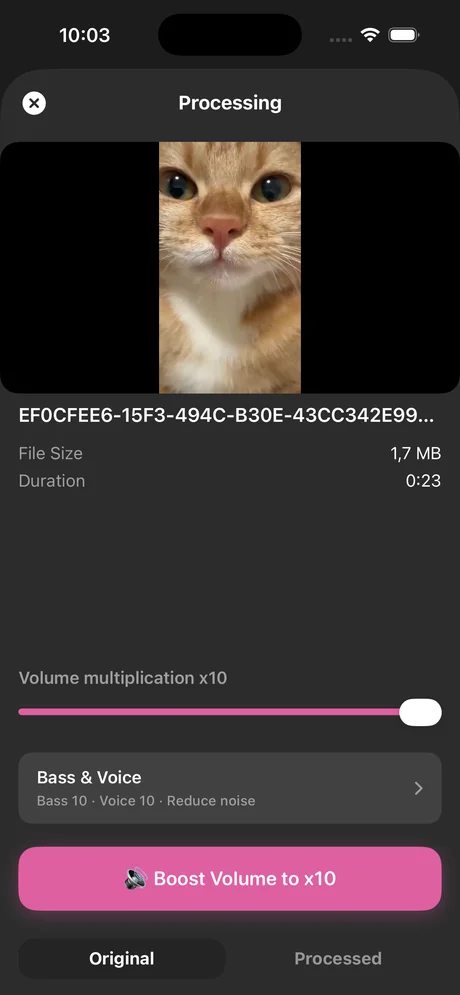
Once the speech is clear, the clip may still be quiet overall. Increase Volume raises the whole file up to ×10 and saves a new copy; for speech, ×3–×6 is usually enough. The optional Improve Audio Quality switch is experimental, so compare Original and Processed before saving.
What doesn't work
The volume buttons can't change the balance inside a clip, and no iPhone app can raise only the voice in any video with one tap. If the voice is buried under loud music, bring the music down first (Audio Mix); otherwise boosting makes the music louder too.
Step by step: make a quiet file louder
About a minute, using the free app from the App Store.
-
1
Open the file
Share a video from Photos or an audio file from Files to Increase Volume.
-
2
Choose the boost
Drag «Volume multiplication»: ×2–×4 for music, ×3–×6 for speech, up to ×10 for very quiet recordings.
-
3
Compare
Tap «Boost Volume» and switch between Original and Processed to check for distortion.
-
4
Save
Tap «Download Processed» and save the louder copy to Photos or Files.

Do it in Increase Volume
Free on the App Store. Import, drag the slider to ×10, tap Download Processed.
Tips
- For speech, boost ×3–×6: above that, background noise rises along with the voice.
- Before a long talk or lecture, record a few seconds and listen back.
- A voice note from WhatsApp or Telegram can be exported and boosted the same way.
Questions people also ask
Can I make only the voice louder in an iPhone video?
Partly. On iPhone 16 and later, Audio Mix in Photos lowers background sound so voices stand out. Then Increase Volume makes the whole clip louder.
Why don't I see Audio Mix?
It appears for videos recorded on iPhone 16 or later with a recent iOS version. Older videos don't contain the extra audio data it needs.
How much should I boost a voice recording?
Start at ×3–×4 and compare Original and Processed. Go higher only while it stays clean.
Increase Volume makes the audio inside a file louder and saves a new copy. It cannot raise the hardware volume limit of the iPhone speaker or change system-wide playback volume.